> For the complete documentation index, see [llms.txt](https://docs.cyberskyline.com/llms.txt). Markdown versions of documentation pages are available by appending `.md` to page URLs; this page is available as [Markdown](https://docs.cyberskyline.com/cyber-skyline-products/cyber-skyline-plus.md).
# Cyber Skyline Plus
Below are Frequently Asked Questions and other resources related to Cyber Skyline Plus
### For Students
My teacher gave me a Cyber Skyline Plus access code. Where do I enter this to join their class?
1. First, login to your Cyber Skyline Account.
2. Redeem it here .
3. Then confirm that the class name and educator(s) are correct.
My teacher gave me a class invite link. What do I do with this?
1. First, login to your Cyber Skyline Account. If you are receiving a class invite link, **you should already have access to Cyber Skyline Plus**. This link will give access for your instructor to view your progress on the platform.
2. Enter the link into your browser bar.
3. Then confirm that the class name and educator(s) are correct.
How do I reset my progress?
You can reset your progress for each world.
1. From the [Plus Dashboard](https://cyberskyline.com/plus/dashboard), click the "Enter" button for the world you want to reset. This will take you to the World Overview page.
2. Click the "Reset Progress" button in the top right.
3. Confirm you wish to reset your progress.
If you are being advised by an educator, their reports are actively synced with your progress.
### Purchasing
How do I subscribe for Cyber Skyline Plus?
Click here to subscribe. How do I submit a purchase order for Plus?
Purchase orders will add funds to your account. Once your account has been funded, you will be able to get access codes. Click here to submit a purchase order. How do I 'get access' without subscribing?
Your instructor or company can purchase access codes for you. (see [Access Codes](#access-and-codes) for information on how to gain access).
How do I manage my payment information?
You can manage all payment information and Transaction History in [Billing](https://cyberskyline.com/user/billing).
What exactly is included with Plus?
With Cyber Skyline Plus, you can:
* Learn by doing with hands-on cybersecurity challenges and tutorials available 24/7
* Explore the refreshed Gymnasium and Challenge Archive
* Take on new challenges added every month
* Track progress and performance with enhanced scoring and insights
* Create and manage classrooms with greater flexibility
* Access instructor guide and answer keys to support learning
* Get 2 NCL registration codes with an annual subscription (for use with 1 spring & 1 fall event)
* Experience the challenge of NCL with Industry Player access
Where can I get info on pricing?
Pricing should be available on our [purchase page](https://cyberskyline.com/plus/purchase).
I have more questions about the product and pricing. Where can I go? Who can I contact?
Reach out to **** and you should receive a response from our staff in about 1 business day.
### Access Codes
What is an access code?
Some institutions do not allow recurring payments, therefore, primary educators can get access codes that allow the user to access the platform for a specific duration of time.
Find out more about primary educators in [Managing Classes](#managing-classes)
How do I get access codes for others (students, other educators, etc)?
1. First, purchase access or subscribe to Cyber Skyline Plus as an educator. The fastest way to get started is to subscribe with a credit card or account credit. **If your organization requires you to use a purchase order**, once your account is funded, go back to the purchase page. You will be given an option to 'Get access without automatic renewals'.
2. If you want to use account credit, you can also go directly here:
3. Educators must create a class before codes can be purchased (codes purchased will be associated with certain classes).
4. Codes are able to be purchased through the "Manage Classes" Dashboard . They may be purchased with a credit card, account credit, or both.
5. You can copy the codes from the dropdown or download the codes
6. Tell your students to redeem it here: .
Codes purchased for students or educators allow them to have access without a recurring subscription.
I purchased access codes for my students. How do I add students to my CS Plus class?
1. Go to your [Educator Dashboard](https://cyberskyline.com/plus/educator), select your class, and click "Copy Access Link" under the "Unredeemed Access Codes" section. You can also export a CSV of all of the access links.
2. Students will need to be logged in to use the link. Once they put the link in their browser and confirm, they will be added to your class.
I had my students purchase their own subscription. How do I add them to my CS Plus class?
1. Go to your [Educator Dashboard](https://cyberskyline.com/plus/educator), navigate to the class you want to add students to.
2. Click "Add Members".
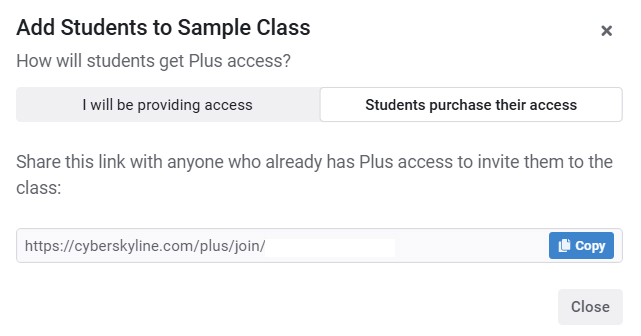
3. Select "Students purchase their access"
4. Copy the join link and distribute this to your students. The links generated for each class are unique to that class.
5. Have your students log in to Cyber Skyline.
6. Have your students enter the link into their browser bar.
7. Have students confirm by selecting "Join Class" (student view shown below)
My student tried using the access code that I sent them, but it doesn't work. Help?
There are a couple reasons access codes (or links) will result in errors.
1. **The access code/link they received was already redeemed**. Look at the code the student is using and your current list of users to verify someone didn't already use the code. Provide the student with an unredeemed code if needed.
2. **The student purchased their own subscription.** Students cannot have both code access AND a subscription at the same time. The student must either join with an invite link OR cancel their subscription in order to redeem an access code. If the student needs help canceling their subscription, please [contact support](https://cyberskyline.com/support/tickets/).
3. **The student didn't verify their email.** Accounts must have a verified email address to access many of the features and products. Email addresses can be verified by clicking the link in the auto-generated email. Users can manually resend the verification email from their [user profile](https://cyberskyline.com/user/profile) page.
I have codes that I purchased but didn't use. Are they still good?
Yes! Unredeemed codes do not expire and can be moved by the primary educator (see [Managing Classes](#managing-classes-educators-only))
Can I reassign a redeemed code to another user?
Codes for Cyber Skyline Plus cannot be reassigned to another user once they have been redeemed.
When does 'access' start?
The term of 'access' begins when the code is redeemed by another user, not when the code is purchased.
What if I want to extend access for users I bought codes for?
If you give class members an additional access code, it will extend their access for the duration associated with the code.
For example, if a user has 4 months of access left and they received a redemption link to get access for 6 months, they will now have 10 months of access.
### Managing Classes
How do I move students to another class?
1. Go to your [Educator Dashboard](https://cyberskyline.com/plus/educator), and select the class you want to move students from.
2. Select the checkbox next to the student's name who you want to move (you can move multiple students at once).
3. Select "Transfer".
4. Select the class you want to transfer the students to.
How do I remove a student from my class?
1. Go to your [Educator Dashboard](https://cyberskyline.com/plus/educator), and select the class you want to remove a student from.
2. Select 'Remove' next to the student's name who you want to remove.
3. You will be asked to confirm if you want to remove that student.
***The student will retain access until the code expires, but will not be part of your class (you will not be able to observe them).***
***You can always re-add the student using the "Add Members" link.***
What happens when I archive a class?
When you archive a class, you lose the ability to add or remove students and other educators. You can still view and download student reports. Primary educators can also still download or transfer unredeemed access codes to another class.
A key benefit of archiving a class is it will be moved from the quick access section on the sidebar to the [Class Archive](https://cyberskyline.com/plus/educator/archives) section.
Students Reports will continue to update if a student continues working on Plus challenges after the class is archived.
How do I archive a class?
1. Go to your [Educator Dashboard](https://cyberskyline.com/plus/educator), and select the class you want to archive.
2. Select the "Archive" button in the top right of the page.
3. It will be removed from the sidebar, but you can find it in the [Class Archive](https://cyberskyline.com/plus/educator/archives) section of the sidebar
I archived a class with unredeemed codes. How do I get the codes?
1. Go to your [Educator Dashboard](https://cyberskyline.com/plus/educator), and select the class you archived.
2. Open the "Unredeemed Access Codes" accordion.
3. Select the checkbox next to the unredeemed codes and then select "Transfer".
4. Select the target class you want to transfer the codes to.
***If you are not the Primary Educator of the target class, you won't be able to undo this action.***
What is a 'primary educator'?
The primary educator is the ***first*** or the ***only educator*** in a class. There can be multiple educators in a class.
The primary educator is able to get access codes for a class and elevate a student to 'educator' status.
Other educators are able to perform all other roles as an educator ***except*** for getting access codes and elevating students to 'educator' status.
How do I give someone 'educator' access to see student progress?
1. To give someone educator access, you must be the 'primary educator'.
2. Once you are the primary educator, make sure the user you want to give educator status to is added to the class as student.
3. Then select the "Make Educator" button next to their name.
You can view all the educators in a class through the educator's tab.
How do I make someone else the 'primary educator'?
Once you are the primary educator of a class, there is no way to change this.
If you have a special circumstance where you need to do this, please [submit a support ticket](https://cyberskyline.com/support/tickets/).
How do I view my students' reports?
1. Go to the [Educator Dashboard](https://cyberskyline.com/plus/educator) and select the class.
2. Go to the "Student Reports" tab. From here you can see an overview of the whole class's scores and download a summary.
3. To view a specific student, find their name in the table and click on the "See Reports" button to view a detailed breakdown.
**These reports continually update, even when a class is archived.** Downloaded reports are a snapshot of that specific time.
Students can [reset their progress](#how-do-i-reset-my-progress) for the Gymnasium and the Archive at any time.