# Welcome
Hello and welcome to the Cyber Skyline Support Documentation, please choose a topic to begin. 🎉
## How can we help you?
You can also choose from the side navigation bar or search from the top right corner of the page.
{% content-ref url="/pages/-MGdizoOwWCMtC5qBsZm" %}
[User Management](/user-management/email-verification)
{% endcontent-ref %}
{% content-ref url="/pages/-MGdj0lAqjmTBhN0YqjG" %}
[Team Management](/team-management/team-setup)
{% endcontent-ref %}
{% content-ref url="/pages/-MGeHUp2MP2Mo33Q231i" %}
[Challenge Interface](/challenge-interface/answer-submission)
{% endcontent-ref %}
## Need help with a specific product?
##
## Need help with a specific event?
{% content-ref url="/pages/-MJJL8QyPaNIgn9W0o5Q" %}
[National Cyber League](/events/ncl)
{% endcontent-ref %}
Don't find what you're looking for? [Open a support ticket](https://cyberskyline.com/support/tickets) with us.
If you find any of these articles useful, click on the ratings icons on the bottom of the page so we know what's good and what's not!
##
# Email Verification
Most functionality on Cyber Skyline requires email verification to proceed.
Cyber Skyline sends the verification email from `support{@}cyberskyline.com`. Please make sure you check both your inbox and spam folders.
## No Email?
Generally that means the email bounced or is being held up by the mail server for various reasons. You can check to see if your email bounced by seeing if you have a notification on the top right corner of the navigation bar on Cyber Skyline.

If your email bounced, there will be a notification alerting you to that fact, please check your email address on your User Profile page to ensure that it is correctly set.
If after 10-15 minutes, you still have not received your verification email. Please open a support ticket with us via [cyberskyline.com/support/tickets](https://cyberskyline.com/support/tickets)
{% hint style="info" %}
We recommend using a personal email address rather than an institutional one \
(unless your institution/organization explicitly requires it)
{% endhint %}
Some institutional email servers may quarantine email for 24 hours or block unknown email senders. In those situations, we recommend that you use an email address from Gmail or Yahoo Mail for example.
## Resend Verification Email
You can navigate to your "Profile" page by clicking on the top right corner dropdown with your name and the "User Setting" option in the dropdown menu.
On the "Profile" page, you'll find that you can edit or click on "Resend Verification Email"

{% hint style="warning" %}
You can only request to send a new verification every so often, so you may be rate limited if you're changing your email rapidly.
{% endhint %}
# Display Name
{% hint style="info" %}
You may have a different display name for every event or content pack, changing the display name for one event or content pack will only change it for that particular event or content pack.
{% endhint %}
Navigate to the event overview page to view and edit your display name for that event.
In the "Display Name" section on the right side of the page, click the "Edit Display Name" button.
Click the "Update" button to save your display name and reload the page.
# Set past scouting reports to private
To change your old reports to private use the following instructions.
1. Go to
2. Toggle the make reports public field from private to public
3. Click save
4. Toggle the make reports public field back to private.
5. Click save again
This will force all your reports to be set as private.
# Linking With Discord
## Pre-Verification
1. Click the verification link [here](https://discord.com/oauth2/authorize?client_id=1326952417035812874\&response_type=code\&redirect_uri=https%3A%2F%2Fcyberskyline.com%2Fuser%2Fprofile%2Fdiscord%2Flink%2F\&scope=identify)
2. Check the profile settings to verify your Discord username is correct
1. Verification will automatically redirect you to your profile settings
3. In the server, you should automatically be assigned the ‘Verified’ role
## Normal Verification
1. Click the [verification link](https://discord.com/oauth2/authorize?client_id=1326952417035812874\&response_type=code\&redirect_uri=https%3A%2F%2Fcyberskyline.com%2Fuser%2Fprofile%2Fdiscord%2Flink%2F\&scope=identify)
1. This can be found in the 'rules' channel of the Discord server below the rules
2. You can also get the verification link by typing `/verify` anywhere in the server
2. Check your profile settings to verify your Discord username is correct
1. Verification will automatically redirect you to your profile settings
3. You should automatically be assigned the ‘Verified’ role
1. If you aren’t, try the Verify button in the 'rules' channel of the Discord server or try using the `/verify` command again
## Unlinking Your Account
1. Use one of the Unlink options in the Discord server
1. Use the Unlink button in the 'rules' channel of the Discord server below the rules
2. Use the `/unlink` command
# Team Setup
{% hint style="info" %}
The Team Setup and Team Management pages are only available to players. Coaches do not have the ability to set up a team.
{% endhint %}
You will find all of the events you are registered for list on the [competition dashboard](https://cyberskyline.com/competition/dashboard) page. From here, you can click on the "Team Setup" button and follow the prompts to complete the process.
You can choose to create a new team or to join an existing team.
### Creating a new team
To create a new team, you have to choose a unique team name. This team name will be used on the leaderboard. The name can also be changed from the Team Detail page.
### Joining an existing team
In order to join an existing team, you need to receive the "Team Invite URL" from the team's captain. The team captain can find the "Team Invite URL" by clicking on the "Add Member" button on the "Team Details" page.
Once you have pasted the Team Invite URL and clicked continue, you will be asked for a confirmation. Please confirm that the team name matches the team you expect to join.
{% hint style="warning" %}
If the Team Invite URL is invalid, please confirm the team captain has sent you the most up-to-date Team Invite URL as they can expire.
{% endhint %}
{% hint style="warning" %}
If you attempt to visit a Team Invite URL for an event that you have not yet registered for, you will be prompted to complete the event registration prior to joining the team.
{% endhint %}
# Manage Team Members
{% hint style="info" %}
The Team Setup and Team Management pages are only available to players. Coaches do not have the ability to set up a team.
{% endhint %}
The Cyber Skyline platform was designed with teams in mind, allowing customization of the team roster.
{% hint style="info" %}
Teams are unique for the given event, changing your team roster for one event will not impact your team roster for another event.
{% endhint %}
{% hint style="success" %}
Always make sure to verify your Team roster to make sure all users that should be on the team are added. Don't get left out! The system will prevent Team roster changes after an event has started.
{% endhint %}
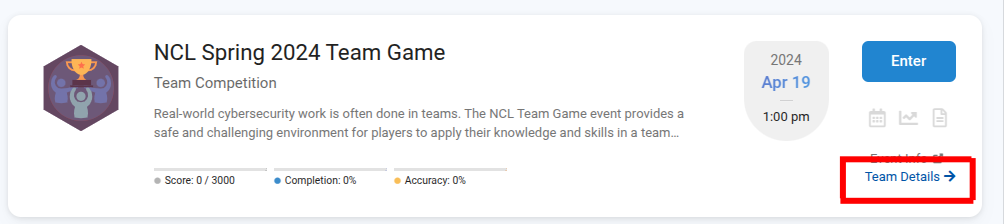
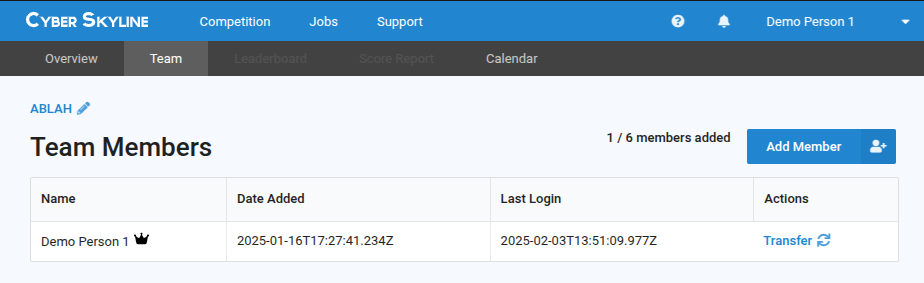
After team setup has been completed, you will have access to the event from the competition dashboard. Click the Team Details button to go directly there, or navigate to the Team tab on the event page.
#### Actions only Captains can perform
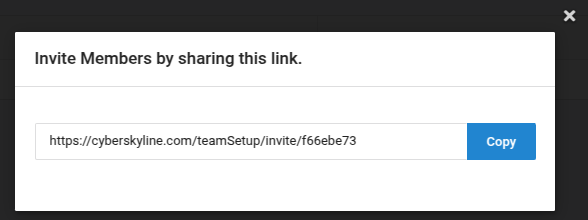
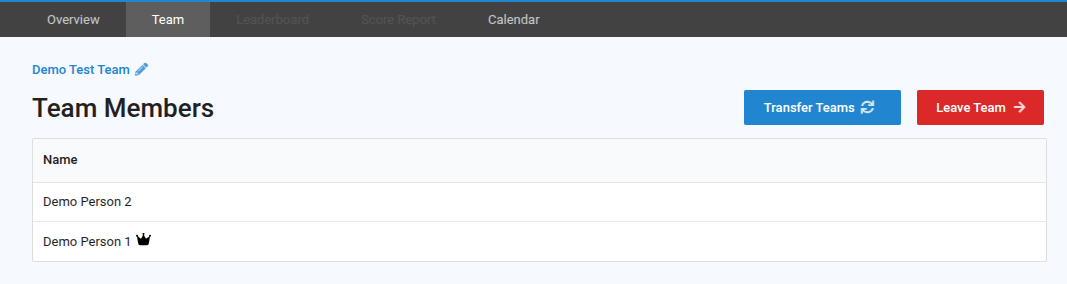
Team Captains have additional permissions than regular players. They have the ability to add members to the team by sending the Invite URL to the player for them to complete their team setup steps. To invite a new team member, simply click on the "Add Member" button and share the Invite URL from the modal with the intended recipient.
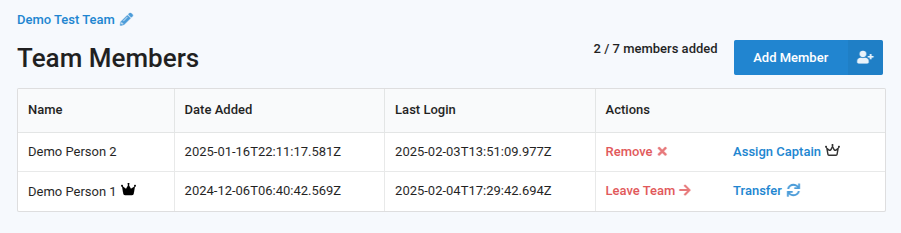
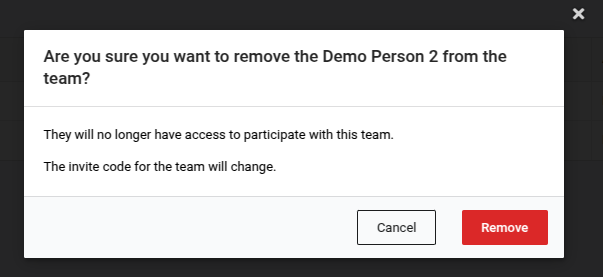
A team captain can also remove members from the team. The removed member does not need to consent to be removed.
{% hint style="warning" %}
If a player is removed from the team, the Invite URL will change. The old Invite URL will become invalid.
{% endhint %}
{% hint style="warning" %}
If there isn't an "Add Member" or "Remove Member" button, it may be that the event has locked the team rosters and is no longer allowing for any team roster changes.
{% endhint %}
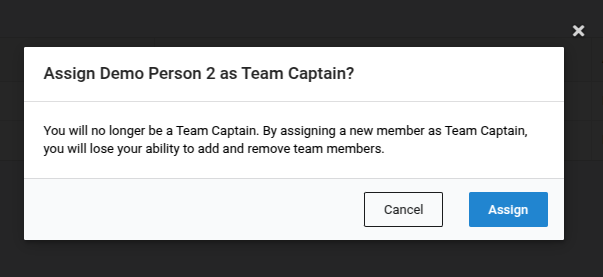
A team captain can also assign a new team captain. By doing so, the original captain will lose their ability to perform captain actions. The new team captain does not need to consent to this change and will have the ability to perform all captain actions thereafter.
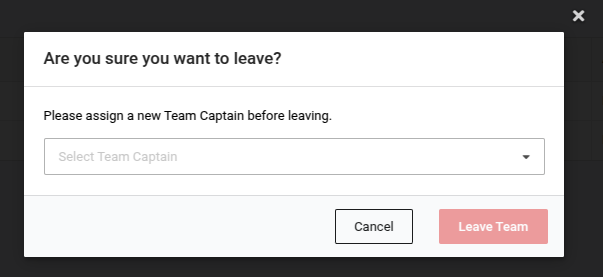
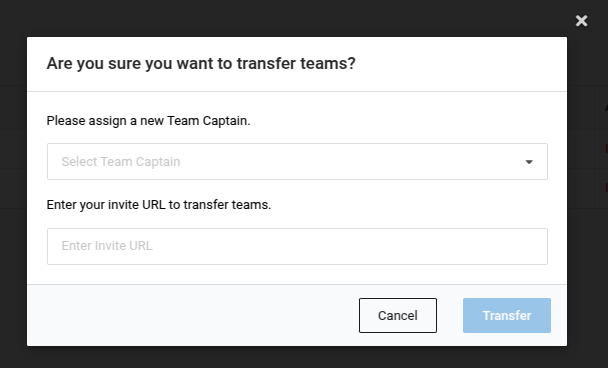
If a captain wishes to leave the team or transfer to a new team, a new captain must be assigned for the current team.
#### Actions all players can perform
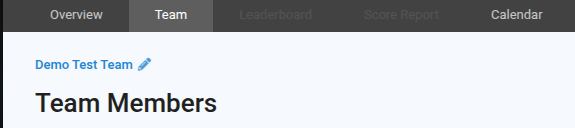
All players on a team can change the name of the team by clicking on the blue editable text in the upper left side of the page.
All players also have the ability to leave or transfer to other teams. Unlike with the Remove button, if a player decides to leave the team or transfer to another team, the Invite URL will not change.
# Change Team Name
Changing the Display Name shown on the Leaderboard page.
The Cyber Skyline platform was designed with various events and teams in mind, you can change your display name by clicking on the Team Detail page of an event or content pack
{% hint style="info" %}
You may have a different display name for every event or content pack, changing the display name for one event or content pack will only change it for that particular event or content pack.
{% endhint %}
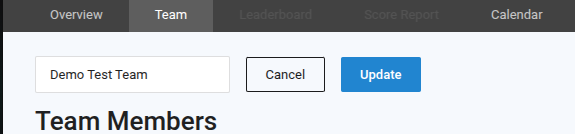
Any player on a team can change the name of the team by clicking on the blue editable text in the upper left side of the page.
{% hint style="info" %}
If the text is not editable, then team name changes has been disabled. This can happen if the event has already started or editing the team has been locked by the system.
{% endhint %}
Change the name to the new team name and click the "Update" button.
{% hint style="success" %}
Check out your new display name on the leaderboard!\
(it may take 60 seconds for the leaderboard to update with the new display name)
{% endhint %}
# Answer Submission
The Cyber Skyline platform was designed with a seamless end user experience in mind. The challenge interface accepts free-form input as submission and the platform will parse out important details and feed that into the Scoring Engine.
You may use natural language formulate your responses, for example, if a question "how many addresses are in a /24 network?" You can enter `256 addresses` or `two hundred and fifty six addresses` as your answer and both will be marked as correct.
Most of the times, if you can find something from the source artifact/system that is representative of the answer, just simply copying that snippet as your submission will be fine. However, you should note the special inputs section below.
## Special Inputs
To avoid ambiguity in certain circumstances such as for date and time input, we use ISO8601 style date format, specifically `YYYY-MM-DD hh:mm` for all date inputs. You'll get a popup to pick your date or you may enter it in the previously stated format.

Other special inputs include IP addresses or hexadecimal inputs where the input box will prevent you from entering anything other than an allowed character.
## Flags
Flags are used to represent sensitive or secret information on a computer system or network. By extracting a flag value, you demonstrate your ability to extract information from the challenge.
The format for a flag is: **SKY-ABCD-####**. The flags will always start with "SKY", then be followed by 4 random letters and 4 random numbers.
You should submit the flag as-is for any question that asks for you. For example, the flag for our Scavenger Hunt Challenge is: **SKY-DOCS-1001.**
{% hint style="danger" %}
Never share your answers or flags with other users, we want everyone to have a fair shot at doing the challenges on their own. For competitive events, sharing answers or flags, including methodology for obtaining them, may result in disqualification.
{% endhint %}
# Scoring & Ranking
There are 2 factors that you are scored on:
1. **Points**: earned by answering challenges correctly
2. **Accuracy**: total # of correct attempts divided by total # of attempts
Incorrect attempts will not deduct points. Some hints may cost points to unlock.
{% hint style="info" %}
Hints will deduct points immediately but have no other impact on your score or ranking.
{% endhint %}
Separate from your Points and Accuracy, you have a **Rank** for competitive events or content packs.
Your **Rank** is determined primarily by points. A tie in Points is broken by Accuracy. A tie in Accuracy is broken by timestamp of last correct attempt. Your Rank is what determines your position on the Leaderboard for a competitive event.
{% hint style="info" %}
Completion does not impact your score or ranking directly. It is simply displayed to signal how much of the content have you or your team successfully completed.
{% endhint %}
## Unranked Play
Cyber Skyline also has a mode of unranked play for certain users who may be ineligible for ranking on the public leaderboard meaning that unranked users/teams will not show up on the leaderboard. All ranking displays will include a notation for unranked play.

For those users/teams, you will see your theoretical ranking reported. Someone else will actually occupy your theoretical rank, but if you were ranked, the reported rank would be your rank. This allows unranked users/teams to also compare their ranking against other ranked users/teams.
# Hints
Some challenges have hints that you can unlock. Some hints are free, some hints cost points to unlock.
{% hint style="warning" %}
If you unlock hints that cost points, those points will be deducted immediately.
{% endhint %}
To unlock hints, click on the question mark icon on the left hand side of the challenge interface. If the challenge has more than 1 hint, you can unlock them in any order.
Hints may have a preview to tell you the contents of the hint so you can decide if it's worth it to unlock them or not.
{% hint style="info" %}
Hints do not impact your performance or ranking in any way other than solely the point deduction.
{% endhint %}
# Shareable Score Report
A shareable Score Report may be generated for you after a timed event for your record keeping and can be showcased on your professional portfolio or networks.
To access and download your shareable Score Report, please first log into the Cyber Skyline platform, then select the event that you wish to download from and navigate to the "Score Report" tab of that event.

Once you're on the Score Report page, if you are eligible for a downloadable report, you will see a grey "Download" button on the right where you'll be able to select either the Report or Certificate to download for that given event.

{% hint style="warning" %}
Shareable Reports and Certificates may not be available immediately. It usually takes a while after an event has completed for the Cyber Skyline team to audit and review all the results before publishing the downloadable Reports and Certificates.
If you know that you will be eligible for a downloadable Report or Certificate, please check back later for the "Download" button or look out for an email from Cyber Skyline.
{% endhint %}
## Verification Link
Cyber Skyline Verified Reports and Verified Certificates come with a unique link that your employer, certification body, or educational institution may use to verify your performance or your participation.
Verification Links are included in your shareable Report and your shareable Certificate.
{% hint style="info" %}
Reports and Certificates have different verification links, so you can choose which one you want to share.
{% endhint %}
## Adding to LinkedIn Profile
LinkedIn allows you to share your certification credentials on your user profile. You can start the process by clicking on [linkedin.com/profile/add?startTask=CERTIFICATION\_NAME](https://www.linkedin.com/profile/add?startTask=CERTIFICATION_NAME)
Your Credential ID is the series of alphanumeric identification code in the last part of your Report or Certificate's verification link. Below is an example of how you can share that on your LinkedIn profile.

{% hint style="success" %}
You can control what information you share with others!
Reports contain your specific performance information whereas Certificates do not contain any performance information.
{% endhint %}
### Example
{% hint style="info" %}
Below is an example of what your shareable report may look like on LinkedIn
{% endhint %}

# Calendar
Need a calendar invite for a timed challenge?
> If it's not on my calendar, it doesn't exist
We know, which is why we've created a way for you to quickly add a timed challenge to your Google Calendar or you can download an iCal file (.ics format) to import to most calendar apps (Apple Calendar, Microsoft Outlook, etc).
So now you can have a reminder for all the timed challenges on Cyber Skyline!

# System Requirements
## System Test
If you're experiencing any issue accessing the Cyber Skyline platform, please try the [System Test page](https://cyberskyline.com/support/system/test) available after sign in.
## Computer
Hardware & software requirements are fairly minimal. In general, we support the **latest** 3 versions of any major web browser such as Chrome (or any Chromium-based browser), Firefox, Safari, and Edge.
You can use **any modern operating system** that supports the above browsers, including Windows, macOS, ChromeOS (Chromebooks), or other Linux based operating systems with at least 1GB of RAM.
Minimum screen resolution is **1200x720**, but we highly recommend something with **1920x1080** screen resolution or larger.
## Network
Really any modern network will be acceptable at long as you have **3Mbps+ speed**, whether you have DSL, cable, fiber optics, or cellular (LTE/5G).
The first page load will generally take a while on slower networks, but subsequent page loads will be able to leverage the browser cache.
Below are the domains that your organizational network should explicitly allow access to:
| **Required Domain** | **Use** | **Notes** |
| ------------------- | ----------------------------------------------------------------------------- | ------------------------------------------------------------------------------------- |
| \*.cyberskyline.com | Cyber Skyline Platform / Scoring Engine | |
| \*.cityinthe.cloud | Designated Targets ([see 5.6](https://cyberskyline.com/terms)) for Challenges | Include all subdomains such as \*.web.cityinthe.cloud and \*.services.cityinthe.cloud |
{% hint style="info" %}
Some Internet Service Providers such as Comcast/Xfinity provides a home router for you and they may come with "Advanced Security" features that automatically blocks network traffic that they categorize as "attacking another network".
You may need to temporarily disable these features on your router if you are performing an offensive attack against a Designated Target and then re-enable the features after you complete the challenge.
{% endhint %}
# Cyber Skyline Plus
Below are Frequently Asked Questions and other resources related to Cyber Skyline Plus
### For Students
My teacher gave me a Cyber Skyline Plus access code. Where do I enter this to join their class?
1. First, login to your Cyber Skyline Account.
2. Redeem it here .
3. Then confirm that the class name and educator(s) are correct.
My teacher gave me a class invite link. What do I do with this?
1. First, login to your Cyber Skyline Account. If you are receiving a class invite link, **you should already have access to Cyber Skyline Plus**. This link will give access for your instructor to view your progress on the platform.
2. Enter the link into your browser bar.
3. Then confirm that the class name and educator(s) are correct.
How do I reset my progress?
You can reset your progress for each world.
1. From the [Plus Dashboard](https://cyberskyline.com/plus/dashboard), click the "Enter" button for the world you want to reset. This will take you to the World Overview page.
2. Click the "Reset Progress" button in the top right.
3. Confirm you wish to reset your progress.
If you are being advised by an educator, their reports are actively synced with your progress.
### Purchasing
How do I subscribe for Cyber Skyline Plus?
Click here to subscribe. How do I submit a purchase order for Plus?
Purchase orders will add funds to your account. Once your account has been funded, you will be able to get access codes. Click here to submit a purchase order. How do I 'get access' without subscribing?
Your instructor or company can purchase access codes for you. (see [Access Codes](#access-and-codes) for information on how to gain access).
How do I manage my payment information?
You can manage all payment information and Transaction History in [Billing](https://cyberskyline.com/user/billing).
What exactly is included with Plus?
With Cyber Skyline Plus, you can:
* Learn by doing with hands-on cybersecurity challenges and tutorials available 24/7
* Explore the refreshed Gymnasium and Challenge Archive
* Take on new challenges added every month
* Track progress and performance with enhanced scoring and insights
* Create and manage classrooms with greater flexibility
* Access instructor guide and answer keys to support learning
* Get 2 NCL registration codes with an annual subscription (for use with 1 spring & 1 fall event)
* Experience the challenge of NCL with Industry Player access
Where can I get info on pricing?
Pricing should be available on our [purchase page](https://cyberskyline.com/plus/purchase).
I have more questions about the product and pricing. Where can I go? Who can I contact?
Reach out to **** and you should receive a response from our staff in about 1 business day.
### Access Codes
What is an access code?
Some institutions do not allow recurring payments, therefore, primary educators can get access codes that allow the user to access the platform for a specific duration of time.
Find out more about primary educators in [Managing Classes](#managing-classes)
How do I get access codes for others (students, other educators, etc)?
1. First, purchase access or subscribe to Cyber Skyline Plus as an educator. The fastest way to get started is to subscribe with a credit card or account credit. **If your organization requires you to use a purchase order**, once your account is funded, go back to the purchase page. You will be given an option to 'Get access without automatic renewals'.
2. If you want to use account credit, you can also go directly here:
3. Educators must create a class before codes can be purchased (codes purchased will be associated with certain classes).
4. Codes are able to be purchased through the "Manage Classes" Dashboard . They may be purchased with a credit card, account credit, or both.
5. You can copy the codes from the dropdown or download the codes
6. Tell your students to redeem it here: .
Codes purchased for students or educators allow them to have access without a recurring subscription.
I purchased access codes for my students. How do I add students to my CS Plus class?
1. Go to your [Educator Dashboard](https://cyberskyline.com/plus/educator), select your class, and click "Copy Access Link" under the "Unredeemed Access Codes" section. You can also export a CSV of all of the access links.
2. Students will need to be logged in to use the link. Once they put the link in their browser and confirm, they will be added to your class.
I had my students purchase their own subscription. How do I add them to my CS Plus class?
1. Go to your [Educator Dashboard](https://cyberskyline.com/plus/educator), navigate to the class you want to add students to.
2. Click "Add Members".
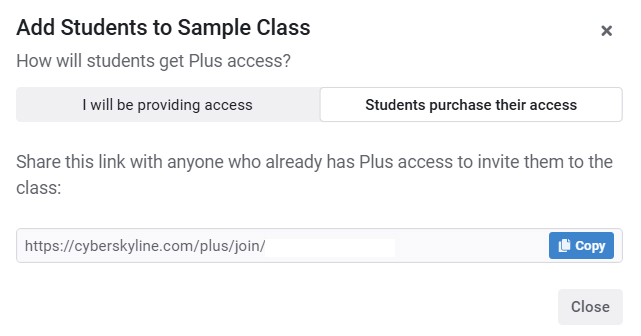
3. Select "Students purchase their access"
4. Copy the join link and distribute this to your students. The links generated for each class are unique to that class.
5. Have your students log in to Cyber Skyline.
6. Have your students enter the link into their browser bar.
7. Have students confirm by selecting "Join Class" (student view shown below)
My student tried using the access code that I sent them, but it doesn't work. Help?
There are a couple reasons access codes (or links) will result in errors.
1. **The access code/link they received was already redeemed**. Look at the code the student is using and your current list of users to verify someone didn't already use the code. Provide the student with an unredeemed code if needed.
2. **The student purchased their own subscription.** Students cannot have both code access AND a subscription at the same time. The student must either join with an invite link OR cancel their subscription in order to redeem an access code. If the student needs help canceling their subscription, please [contact support](https://cyberskyline.com/support/tickets/).
3. **The student didn't verify their email.** Accounts must have a verified email address to access many of the features and products. Email addresses can be verified by clicking the link in the auto-generated email. Users can manually resend the verification email from their [user profile](https://cyberskyline.com/user/profile) page.
I have codes that I purchased but didn't use. Are they still good?
Yes! Unredeemed codes do not expire and can be moved by the primary educator (see [Managing Classes](#managing-classes-educators-only))
Can I reassign a redeemed code to another user?
Codes for Cyber Skyline Plus cannot be reassigned to another user once they have been redeemed.
When does 'access' start?
The term of 'access' begins when the code is redeemed by another user, not when the code is purchased.
What if I want to extend access for users I bought codes for?
If you give class members an additional access code, it will extend their access for the duration associated with the code.
For example, if a user has 4 months of access left and they received a redemption link to get access for 6 months, they will now have 10 months of access.
### Managing Classes
How do I move students to another class?
1. Go to your [Educator Dashboard](https://cyberskyline.com/plus/educator), and select the class you want to move students from.
2. Select the checkbox next to the student's name who you want to move (you can move multiple students at once).
3. Select "Transfer".
4. Select the class you want to transfer the students to.
How do I remove a student from my class?
1. Go to your [Educator Dashboard](https://cyberskyline.com/plus/educator), and select the class you want to remove a student from.
2. Select 'Remove' next to the student's name who you want to remove.
3. You will be asked to confirm if you want to remove that student.
***The student will retain access until the code expires, but will not be part of your class (you will not be able to observe them).***
***You can always re-add the student using the "Add Members" link.***
What happens when I archive a class?
When you archive a class, you lose the ability to add or remove students and other educators. You can still view and download student reports. Primary educators can also still download or transfer unredeemed access codes to another class.
A key benefit of archiving a class is it will be moved from the quick access section on the sidebar to the [Class Archive](https://cyberskyline.com/plus/educator/archives) section.
Students Reports will continue to update if a student continues working on Plus challenges after the class is archived.
How do I archive a class?
1. Go to your [Educator Dashboard](https://cyberskyline.com/plus/educator), and select the class you want to archive.
2. Select the "Archive" button in the top right of the page.
3. It will be removed from the sidebar, but you can find it in the [Class Archive](https://cyberskyline.com/plus/educator/archives) section of the sidebar
I archived a class with unredeemed codes. How do I get the codes?
1. Go to your [Educator Dashboard](https://cyberskyline.com/plus/educator), and select the class you archived.
2. Open the "Unredeemed Access Codes" accordion.
3. Select the checkbox next to the unredeemed codes and then select "Transfer".
4. Select the target class you want to transfer the codes to.
***If you are not the Primary Educator of the target class, you won't be able to undo this action.***
What is a 'primary educator'?
The primary educator is the ***first*** or the ***only educator*** in a class. There can be multiple educators in a class.
The primary educator is able to get access codes for a class and elevate a student to 'educator' status.
Other educators are able to perform all other roles as an educator ***except*** for getting access codes and elevating students to 'educator' status.
How do I give someone 'educator' access to see student progress?
1. To give someone educator access, you must be the 'primary educator'.
2. Once you are the primary educator, make sure the user you want to give educator status to is added to the class as student.
3. Then select the "Make Educator" button next to their name.
You can view all the educators in a class through the educator's tab.
How do I make someone else the 'primary educator'?
Once you are the primary educator of a class, there is no way to change this.
If you have a special circumstance where you need to do this, please [submit a support ticket](https://cyberskyline.com/support/tickets/).
How do I view my students' reports?
1. Go to the [Educator Dashboard](https://cyberskyline.com/plus/educator) and select the class.
2. Go to the "Student Reports" tab. From here you can see an overview of the whole class's scores and download a summary.
3. To view a specific student, find their name in the table and click on the "See Reports" button to view a detailed breakdown.
**These reports continually update, even when a class is archived.** Downloaded reports are a snapshot of that specific time.
Students can [reset their progress](#how-do-i-reset-my-progress) for the Gymnasium and the Archive at any time.
# National Cyber League
The National Cyber League (NCL) is a biannual collegiate cybersecurity competition operated by Cyber Skyline.
This page contains answers to a few common support questions, for the most detailed information about the NCL, please visit:
{% hint style="info" %}
Registration for the NCL is available on:
{% endhint %}
## Season Schedule
The NCL has 2 seasons every year - a Fall Season and a Spring Season - to align with US academic calendars.
To see the current Season's schedule, please visit:
## NCL Game Code
The NCL has a nominal registration fee that helps pay for infrastructure and content development as we aim to provide brand new challenges every Season.
Students will either pay for the registration fee via the registration process or be provided a NCL Game Code from the school's faculty coach. The registration process will have an applicable option for you to choose. The NCL Game Code is an alphanumeric code in the form of AAAA-AAAA-AAAA-AAAA (16 characters with 3 dashes separating each set of 4 characters).
If you receive your Game Code from your faculty coach, you will also be automatically added to the faculty coach's observation group, allowing your faculty coach to observe your Season performance.
{% hint style="warning" %}
Using a Game Code from your faculty coach does not place you on any Teams for the NCL Team Game, please see the NCL Team Game section below.
{% endhint %}
## Scouting Reports
NCL Scouting Reports are available after the NCL Season ends for the NCL Individual Game (includes Preseason performance) & NCL Team Game. No Scouting Reports are available for the NCL Gymnasium.
Once the Scouting Reports are available, you will receive an email notification at your registered email address. If you have associated a faculty coach, they will also receive a copy of your Scouting Report.
More details:
{% hint style="danger" %}
Players who violate the NCL Rules of Conduct and Faculty Coaches are not eligible for Scouting Reports
{% endhint %}
## Team Game Setup
To set up your NCL Team Game roster, visit
One student player should initially create the Team, then share the instructions to join the team with fellow team members. Faculty coaches are not able to assign teams, only the student players are able to create and join teams.
We do not have the notion of a Team captain, anyone can create a Team and invite others to join. All members of the Team are able to view & share the invite link, so please make sure you communicate with your Team members the roster expectations.
If a Team member needs to transfer to a different team, they can simply use the invite link from the other Team and the member will be automatically transferred, there is no need to be first removed from the existing Team.
{% hint style="info" %}
You must be registered for the current Season in order to participate in the Team Game.
{% endhint %}
{% hint style="warning" %}
Your faculty coach's observation group does not imply that your are part of a school team. \
The Coach Observation Link has no impact on your Team Game roster. Please make sure you verify your Team roster at the link above.
{% endhint %}